 r/lego
· 4h ago
r/lego
· 4h ago
Just preordered Minas Tirith!
Has anyone else seen this? Pretty sure it's the biggest LEGO LOTR set ever. Link for the curious:
lego.com/en-us/product/…-minas-tirith-11377
Free Chrome extension for lego.com
BrickHop is a free Chrome extension that rewrites lego.com links to the country and language you choose. When a link points at another country's store, BrickHop opens the same page in your country's store instead.
lego.com/en-us. For a reader
in Austria, that opens the wrong store.
lego.com/de-at, in your
country and language, with a small notification of what changed.
Watch
A short walkthrough of BrickHop in action, from first-run setup to a foreign LEGO link opening in your own country's store.
One-time setup
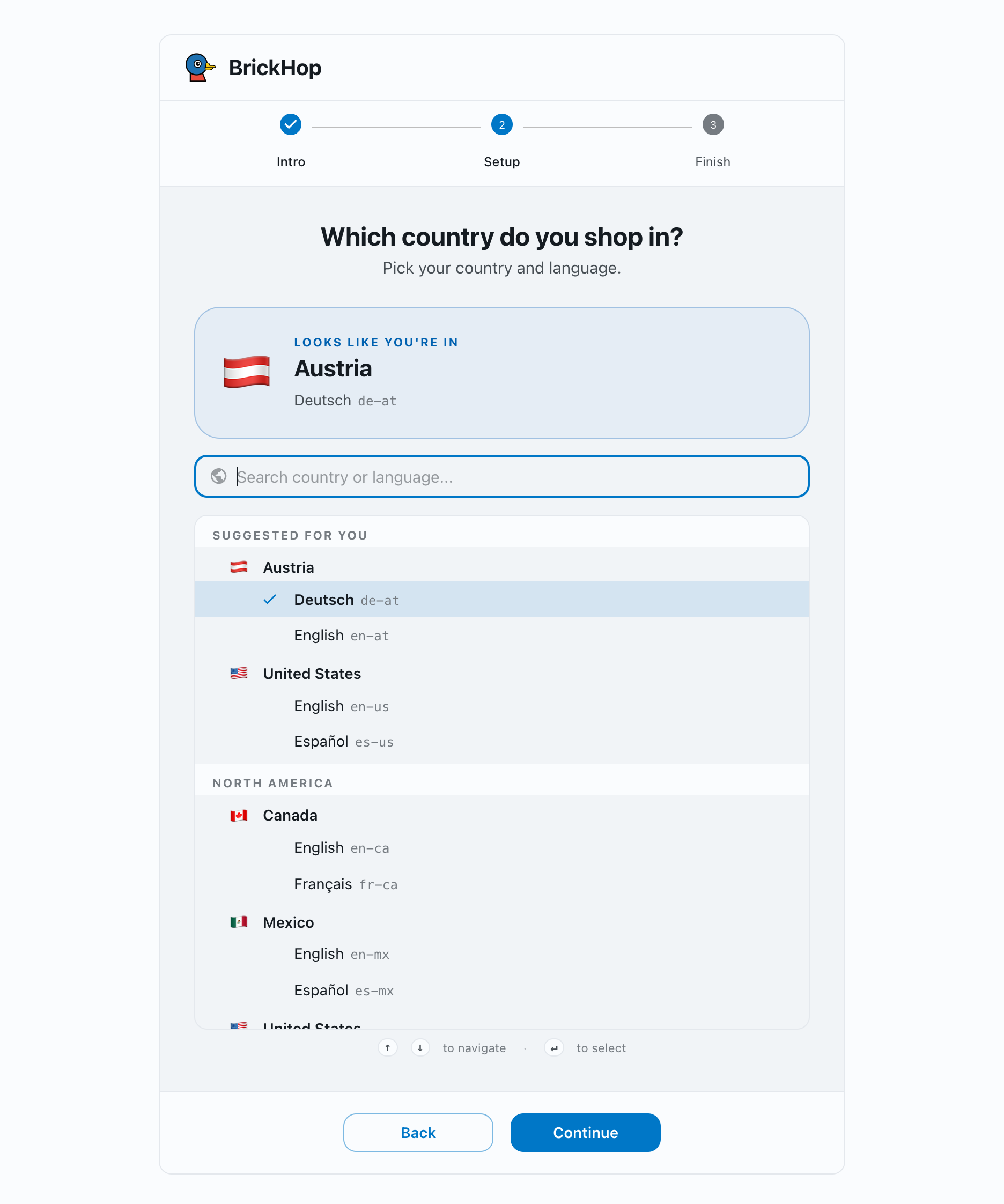
Right after you install BrickHop, a welcome tab opens and asks for your country and language. Choose them and confirm to finish setup.
Pick the country suggested at the top, or search by name or
code. You can also browse the full grouped list. Each country
lists the codes it offers: Austria has
de-at for German and
en-at for English.
By default, BrickHop rewrites a LEGO URL to your country whenever you land on a different one. To switch by hand instead, turn off Auto redirect in Settings, then open BrickHop's side panel from the toolbar to change the country of the page you are on.
Your country and the Auto redirect setting can both be changed later from the Settings page.
After install
Chrome places every newly installed extension behind the puzzle-piece icon to the right of the address bar. Pin BrickHop once and its icon stays visible from then on.
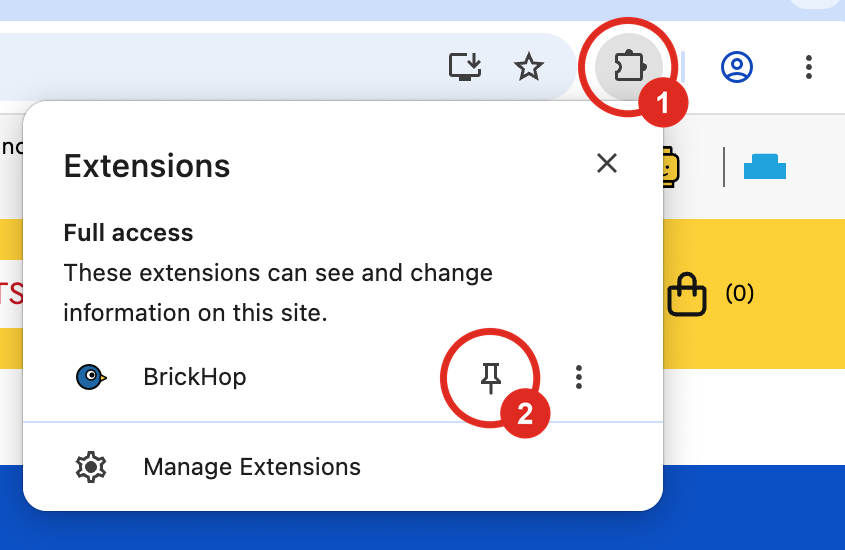
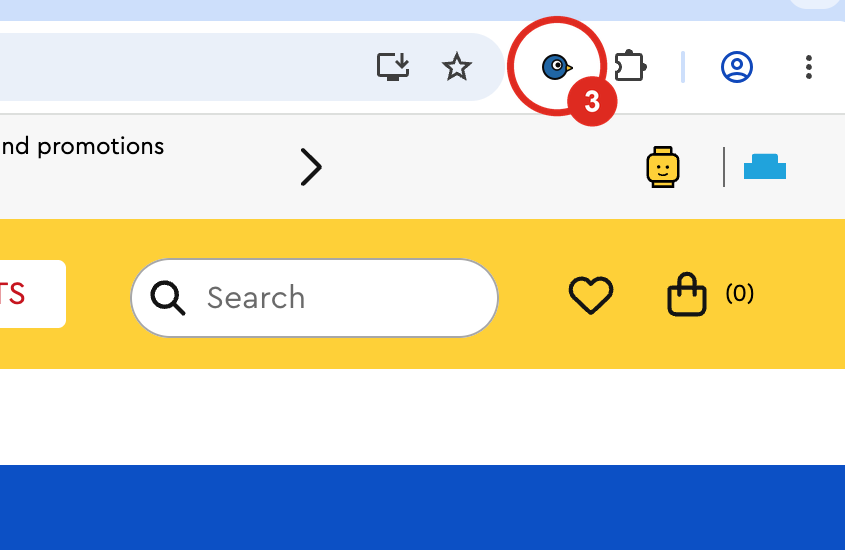
Click the puzzle-piece Extensions icon (1), find BrickHop in the list, and click the pin next to its name (2). Its icon then stays in your toolbar, where you can reach it any time (3).
Changing settings
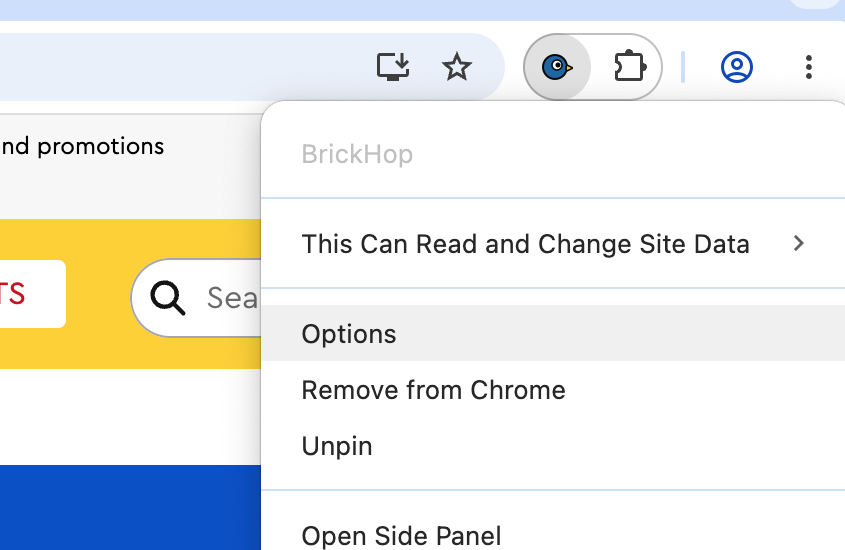
To change your country or any other setting after install, right-click BrickHop's icon and choose Options.
Privacy
BrickHop collects no personal data and has no analytics or tracking. It stores only your settings, like your country and language, in your browser's local storage, where they stay on your device. For the full details, read the privacy policy.